Troubleshoot the Desktop Client
Last updated: November 4, 2026
This guide helps administrators diagnose the most common problems with the ShArc Desktop Client (ShArcDesktop) and explains how to retrieve the client log file to attach to a support ticket.
How the desktop client works
When a user opens a .sharc file, the client reads its configuration, signs the user in against Azure AD, locates the file inside the user's OneDrive sync folder, and asks the ShArc server to restore the original file from blob storage. Once the restore completes and OneDrive has synced the file back to the device, the client opens it with its default application.
Most issues fall into one of four categories: configuration, authentication, OneDrive sync, or server connectivity. The sections below map the messages users see to their likely cause and resolution.
How the client is installed
ShArcDesktop reaches user machines in one of two ways. Both install the same client and write the same appsettings.json, so the troubleshooting steps below apply to either:
- Microsoft Intune – for rolling the client out to many machines centrally.
- Standalone installer (
ShArcDesktop-Installer.exe) – for a single machine, such as a tester or an unmanaged device.
To repair or reapply the configuration, use whichever method the affected machine was installed with: re-push the Intune app or rerun the standalone installer. Full deployment steps are available in the ShArc Desktop Client installation guide.
Retrieving the log file
The desktop client writes a detailed log on every run. Attaching this log to a support case lets the support team pinpoint the problem quickly.
The log is stored per user, in the profile of the person who experienced the problem. Collect it from the affected user's machine and account, not the administrator's own account.
To retrieve the log:
-
On the affected user's device, open File Explorer.
-
Paste the following path into the address bar and press Enter:
%LocalAppData%\Layer2\ShArc\logs -
One or more files named
sharc-YYYYMMDD.logappear, for examplesharc-20260529.log. A new file is created each day, and the files are kept for 7 days by default. -
Select the log file for the day the problem occurred. If unsure, select all of them.
-
Attach the file or files to the support ticket, together with a short description of what the user did and which error message appeared.
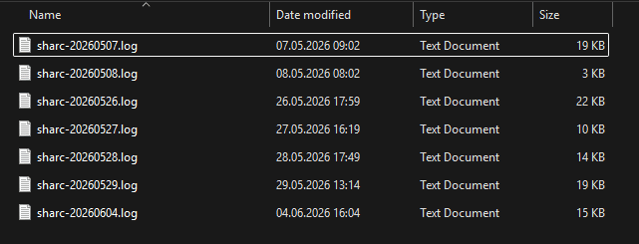
File Explorer showing the ShArc log folder at %LocalAppData%\Layer2\ShArc\logs with the dated sharc-YYYYMMDD.log files.
The full path resolves to C:\Users\<username>\AppData\Local\Layer2\ShArc\logs. Each log file is capped at 10 MB and rolls over automatically, so the most recent activity is always in the newest file.
Checking the configuration
The client reads its settings from a machine-wide configuration file:
%ProgramData%\Layer2\ShArc\appsettings.json
The full path resolves to C:\ProgramData\Layer2\ShArc\appsettings.json. If a user sees a configuration error on launch, verify that this file exists and contains all four required fields:
| Field | Purpose |
|---|---|
ServerUrl | The address of the ShArc server |
ClientId | The Azure AD app registration of the desktop client |
ServerClientId | The Azure AD app registration of the ShArc server |
TenantId | The Microsoft 365 tenant ID |
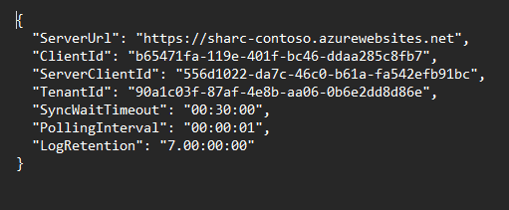
The appsettings.json file showing the four required fields: ServerUrl, ClientId, ServerClientId, and TenantId.
If any of these fields is missing or empty, the client cannot start a restore. Redeploy the configuration file via Intune or by rerunning the standalone installer.
Common issues and resolutions

A ShArc Desktop Client error message shown when a restore cannot be completed.
| Message the user sees | Likely cause | What to do |
|---|---|---|
| Configuration error on launch | appsettings.json is missing or incomplete | Verify the file exists at %ProgramData%\Layer2\ShArc\appsettings.json and contains all four fields described above. |
| Authentication failed | The sign-in was cancelled, or the device cannot reach Azure AD | Have the user retry and complete the sign-in prompt. Check that the Azure AD app registrations are consented for the tenant. |
| You don't have permission to access this file | The user lacks read access to the file in SharePoint | Grant the user access to the SharePoint document library. |
| The file is currently checked out / locked | Another user has the file checked out or locked | Restore once the file is checked back in. |
| Not in a OneDrive sync folder | The .sharc file is not inside a synced OneDrive location | Ensure the library is synced to the device with OneDrive. |
| OneDrive not running, start it manually | OneDrive is not running and could not be started automatically | Start the OneDrive client and retry. |
| Sync not completed, open from OneDrive later | The restore succeeded, but OneDrive did not finish syncing in time | The file will appear once OneDrive catches up. Check the user's connection and OneDrive status. |
| The server is currently unavailable / could not be reached | The ShArc server is down or the URL is wrong | Confirm the server is running and that ServerUrl is correct. |
| Could not connect to the server | Network or internet connectivity problem | Check the device's connection and any firewall or proxy rules. |
| This file has already been restored | The file was already restored by an earlier action | No action is needed. The user can open the file normally. |
| This file is currently being processed | A restore is already in progress for this file | Wait a moment and try again. |
When to open a support case
If the problem persists after the checks above, open a support case through support@layer2solutions.com and include:
- The log file or files from
%LocalAppData%\Layer2\ShArc\logs. - The exact error message the user saw.
- A short description of what the user did and the name of the file they tried to restore.
- Whether the issue affects one user or many.
With the log file attached, the support team can trace the restore from launch to failure and respond with a targeted fix or workaround.