Check archived storage
Last updated: July 23, 2026
How to check your Azure Blob Storage usage and see how much data you’ve archived with ShArc
Are you using ShArc to archive data from SharePoint? This quick guide shows you how to check how much data has already been moved to Azure Blob Storage. It helps you monitor cost savings, track archiving progress, and make informed decisions about storage optimization.
📌 Note: This method shows only the data that has already been archived to Azure Blob Storage via ShArc. It does not reflect your full SharePoint Online storage usage.
Why storage visibility matters
- Track how much SharePoint data has been archived to Azure
- Measure cost savings from reduced SharePoint storage usage
- Use usage metrics to evaluate your storage tier choice
- Monitor storage growth over time
Step-by-Step: check your current Azure Blob Storage usage
1. Open the Azure Portal
Go to the Azure Portal and log in with your admin credentials.
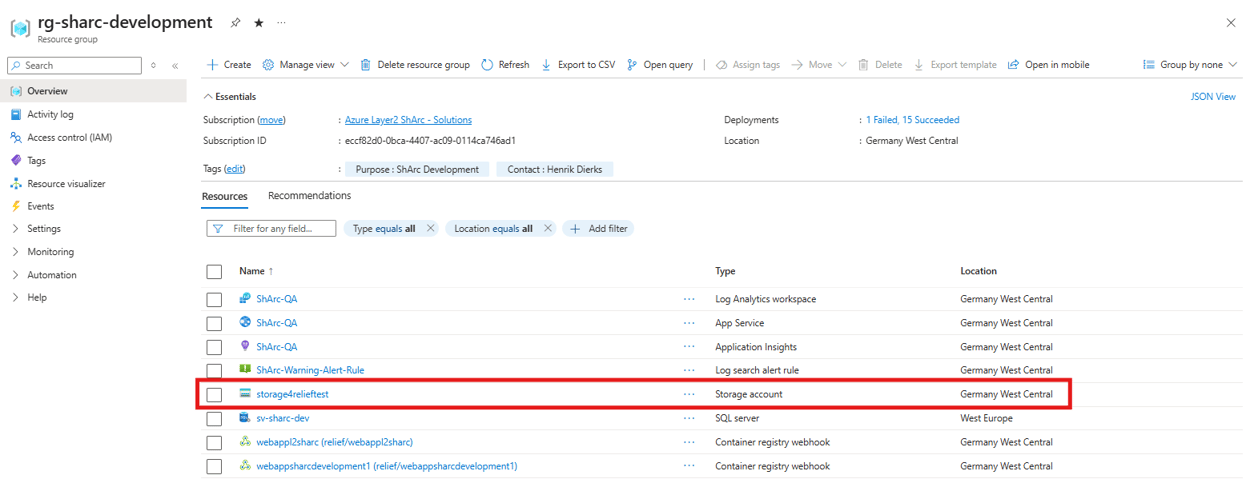
2. Navigate to your ShArc resource group
Open the resource group associated with your ShArc deployment.
3. Select the storage account
Choose the storage account ShArc uses to archive SharePoint files.
4. Go to Monitoring → Metrics
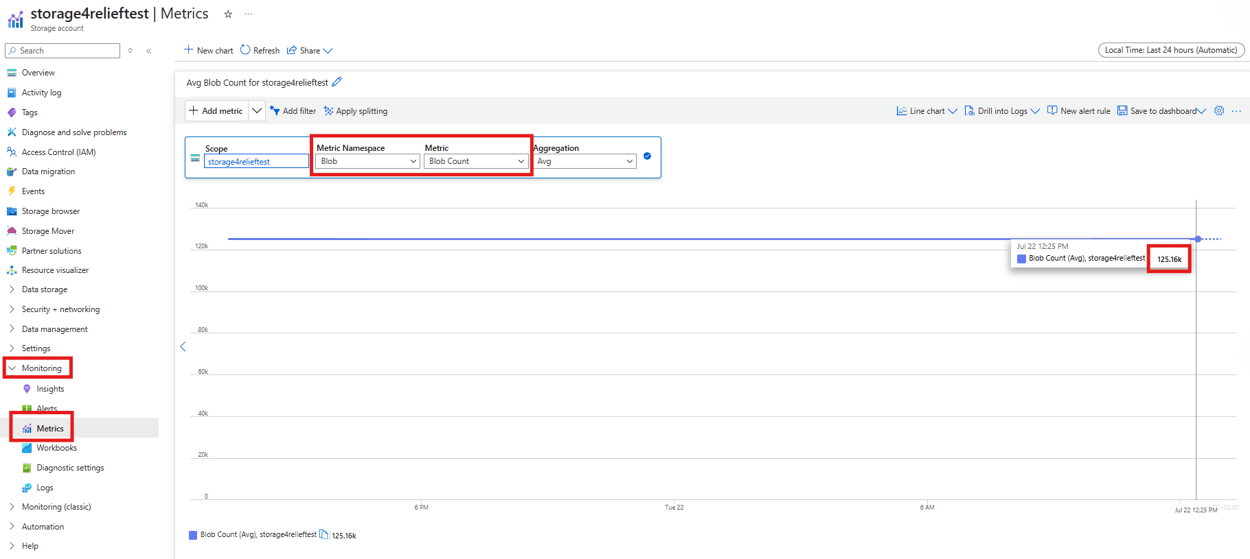
In the left-hand menu of the storage account, click Monitoring, then Metrics.
5. Set metric namespace to Blob and metric to Blob Count
Select Blob in the "Metric Namespace" dropdown and "Blob Count" as the "Metric" to view the total number of files.
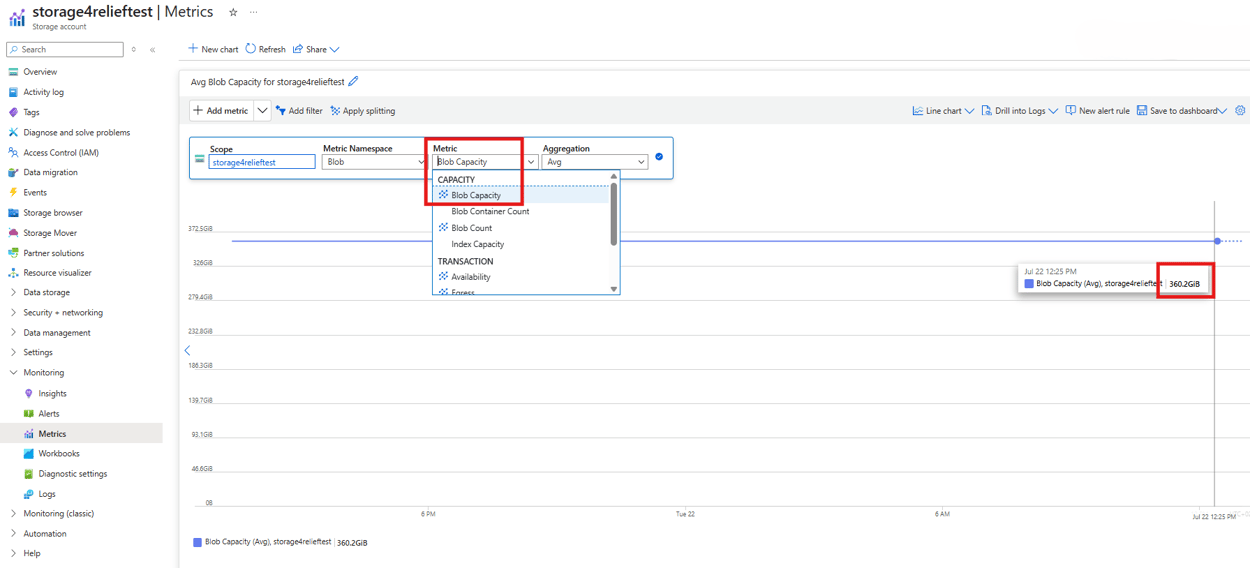
6. Switch the metric to "Blob Capacity" to view the total amount of storage used
How to interpret the results
- Blob Count helps you understand the number of files archived
- Blob Capacity shows the total archived data volume and potential cost savings
- You can enter these numbers into the Azure Pricing Calculator to estimate monthly storage costs for the "Hot" or "Cool" tiers
What this doesn’t show
Azure Blob metrics only reflect the data that has already been archived to Azure. They do not show:
- Deleted versions of archived files
- Your total SharePoint Online usage
- How much of your SharePoint data is still “cold”
- What data is still eligible for archiving
Next steps & optimization tips
- Use the Blob Capacity data to optimize your tier ("Hot" vs. "Cool")
- Set up alerts in Azure Monitor if storage grows beyond certain thresholds
Frequently asked questions (FAQ)
What’s the difference between Blob Count and Blob Capacity?
Blob Count = number of archived files. Blob Capacity = total archived data volume in GB or TB.
Can I see my SharePoint storage usage in Azure?
No, Azure only shows what has been archived via ShArc. Use ShArc's internal analytics or the Microsoft 365 Admin Center to view SharePoint usage.
How often should I check my Azure Blob usage?
We recommend checking it monthly, especially if archiving rules or data volumes change frequently.
Can I automate alerts for Azure Blob growth?
Yes, you can set up capacity-based alerts using Azure Monitor.
Need help? Contact our team or talk to your ShArc advisor for best practices.